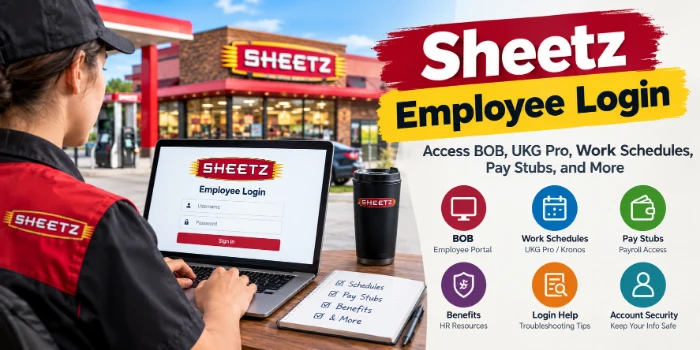
Sheetz Employee Login: Access BOB, UKG Pro, Work Schedules, and Pay Stubs
Looking for the Sheetz employee login to check your work schedule, access payroll information, or view employee benefits? The correct portal depends on the task you need to complete.
Start with BOB.Sheetz.com, the entry point associated with Sheetz’s employee intranet. From there, employees may access internal resources and links to other company systems, depending on their permissions and the current access arrangements.
For schedules and timekeeping, Sheetz employees have used Kronos and related UKG systems. Access procedures have changed, and employees have reported problems reaching BOB and UKG Pro from personal devices during 2026. If the portal does not work from home, you may need to follow your store’s current instructions or contact your manager.
This guide explains the available login destinations, how to find the correct system, and what to do when you cannot sign in.
Sheetz Employee Login Links
Use the following table to identify the portal that best matches your needs.
| Employee task | Login portal | Purpose |
|---|---|---|
| Employee intranet | BOB.Sheetz.com | Internal information and employee resources |
| BOB login page | Sheetz Interact login | Employee intranet sign in |
| Federated authentication | federate.sheetz.com | Authentication for supported Sheetz systems |
| Work schedules and timekeeping | Sheetz UKG HRSD login | UKG related employee access, where applicable |
| Employee benefits | Sheetz Benefits | Public information about employee benefits |
| Job applications | Sheetz Careers | Current openings and employment opportunities |
| Customer wallet | Sheetz My Wallet | Customer payment and ordering features |
Important: These links do not all serve the same purpose. A login page may redirect you to another authentication service, or it may require access permissions that depend on your role. If a link no longer works, use the current link provided by your manager or the company intranet rather than relying on an older third party guide.
What Is Sheetz BOB?
BOB is the name commonly used for Sheetz’s employee intranet. It provides an entry point to internal company information and systems.
Employees have used BOB to access resources related to workplace policies, schedules, attendance, payroll documents, and other employment matters. Available functions depend on the employee’s role and the systems currently enabled for their account.
The most direct starting point is BOB.Sheetz.com.
The BOB branded login page is also available at sheetz.interactgo.com/login. The page identifies itself as the BOB.Sheetz.com login and requests a username and password. View the BOB login page.
How to log in to Sheetz BOB
- Open BOB.Sheetz.com.
- Allow the browser to complete any company authentication redirects.
- Enter your assigned employee username and password on the appropriate login screen.
- Complete any additional authentication steps if prompted.
- Once signed in, locate the internal resource or system you need.
Use the credentials assigned to you by Sheetz. Do not assume your public Sheetz customer account uses the same username or password as your employee account.
What if BOB redirects to another page?
A redirect does not automatically mean you have reached the wrong website. Sheetz uses a federated authentication portal, and its BOB login may direct you to a separate sign in page.
For example, federate.sheetz.com identifies itself as Sheetz’s federated authentication portal.
Check that the final address belongs to a legitimate Sheetz company domain or an authentication service supplied by your employer. If the destination asks for unfamiliar information or looks suspicious, stop and confirm the link with your manager or company support.
How to Access Sheetz UKG Pro and Kronos
UKG Pro and Kronos are associated with workforce management and employee timekeeping. Depending on the system currently enabled for your account, these tools may provide access to schedules, attendance information, time records, and related employee functions.
Sheetz employees previously used Kronos for timekeeping, and employee discussions describe accessing it through internal system links. More recent employee discussions refer to UKG Pro, including changes to its mobile app and login procedures.
This transition is important because older guides may still show steps for a previous version of Kronos.
How to access UKG Pro through BOB
When company access is available, the usual approach is to open BOB and locate the relevant workforce management or timekeeping link.
- Open BOB.Sheetz.com.
- Sign in with your assigned employee credentials.
- Look for a section such as Links to Systems or the current timekeeping resource.
- Select the UKG, Kronos, or MyTime link provided for your account.
- Follow the authentication instructions shown on the current page.
The exact menu names may differ as Sheetz updates its internal systems. If the link is missing, contact your manager instead of trying random login addresses.
Can you access UKG Pro from your phone?
Some Sheetz employees use the UKG Pro mobile app. However, installing the app does not guarantee that your account is ready for mobile access.
Employee reports from 2026 describe differences in access depending on the account, device, network, and authentication setup. Reports have also described periods when BOB or UKG access from personal devices was restricted.
For these reasons, do not assume that an old Kronos mobile tutorial applies to your current account.
Ask your manager which app and sign in method your location currently supports. If your store requires an initial sign in on its approved employee network, complete that process according to company instructions.
Sheetz Employee Login for Work Schedules
If you want to know when your next shift starts, look for your current schedule in the workforce system assigned to you.
Depending on your access, this may be UKG Pro or another company approved timekeeping resource.
How to check your Sheetz work schedule
- Open the current employee portal or approved UKG Pro app.
- Sign in using the method supplied by Sheetz.
- Open the schedule or My Schedule section.
- Review the dates, shift times, and any available schedule details.
- Check for updates if your manager has recently changed your shifts.
The exact layout may vary by app version and employee permissions.
If the schedule is blank, do not immediately assume that you have no upcoming shifts. A technical issue, account permission, or incomplete setup can prevent schedule information from appearing.
Contact your manager to confirm your next shift when the schedule is unavailable. This is particularly important if your next workday is approaching.
What if your Sheetz schedule is not showing?
First, check whether other employees at your location are experiencing the same issue. That can help establish whether the problem is broader than your account.
Next, try the company approved access method and check whether the schedule appears on an authorized store device.
If it remains blank, notify your manager and ask for confirmation of your scheduled hours. Keep any work schedule information or written confirmation in a manner permitted by company policy.
Do not rely solely on a malfunctioning app when you need to confirm a shift.
Sheetz Employee Login for Pay Stubs and W-2 Forms
Employees who need a pay stub or tax document should use the payroll system or internal resource designated by Sheetz.
These documents contain sensitive financial information, so it is important to use the correct employee account rather than a customer ordering account.
Depending on the available systems and your permissions, payroll documents may be accessible through UKG Pro or a separate internal payroll resource.
How to find your Sheetz pay stub
- Sign in to BOB or the current employee system provided by your manager.
- Find the payroll, pay statement, or employee documents section.
- Select the relevant pay period.
- Open the statement and save or print it using an approved device.
- Sign out when finished, especially on a shared computer.
Menu names and access procedures may change, so follow the instructions supplied by the current payroll system.
What if you cannot access your W-2?
If the employee portal is unavailable during tax season, contact your manager or the appropriate payroll support channel.
In March 2026, Sheetz employees reported problems obtaining pay stubs and W-2 documents when BOB access was unavailable. Some reported being directed to payroll support or using another working company authorized system. These are employee reports rather than a published company wide outage notice, but they illustrate why an alternative support route matters.
You can also ask your manager to raise a payroll support ticket or direct you to the current process for obtaining tax documents.
Avoid sending your Social Security number, bank information, or copies of tax documents to an unverified email address.
Sheetz Employee Benefits Login
Sheetz publishes information about its employee benefits on its official careers website.
Visit the Sheetz Benefits page to review publicly described benefits and perks.
The page discusses offerings such as medical, dental and vision coverage, retirement savings, paid time off, tuition reimbursement, employee food discounts, and other benefits. Actual eligibility and terms can depend on your position and employment status.
How to access your personal benefits information
The public benefits page explains the company’s offerings, but it is not necessarily the login destination for managing an individual benefits account.
For personal enrollment, coverage details, dependents, or plan documents, use the benefits system or enrollment link provided by Sheetz.
If you cannot locate the correct system, contact HR or your manager. Do not enter employee credentials into a third party site simply because it uses Sheetz branding.
What Is the Sheetz Federated Login Portal?
The address federate.sheetz.com is associated with Sheetz’s federated authentication process.
Federated login allows a supported company system to use an authentication service to verify a user’s identity. Instead of each system necessarily handling the entire sign in process independently, the user may be redirected through an approved identity provider.
This explains why a login attempt can begin at one address and finish at another.
What should you do if federated login fails?
Try the following basic checks:
- Make sure you opened the current link provided by Sheetz.
- Check that your browser allows the cookies required for the authentication session.
- Close duplicate login tabs and start a fresh session.
- Use an approved browser or company device if required.
- If the error continues, record the message and contact company support.
Sheetz’s federated login page can display session errors when it cannot establish the expected session. A message of this kind does not necessarily mean that your account has been disabled.
Do not repeatedly reset your password unless the error indicates that your password is the problem.
Sheetz Employee Login Not Working? Try These Fixes
Login problems may result from incorrect credentials, browser issues, incomplete account setup, expired sessions, permissions, or system outages.
The most useful first step is to identify the exact error rather than trying every available portal.
1. Check your username and password
Confirm that you are using the credentials assigned for the employee system you are trying to access.
Check for accidental spaces, keyboard layout changes, and capitalization issues. Do not assume your Sheetz customer account password will work for BOB or UKG.
2. Open a fresh browser session
A stale login session can cause a redirect loop or prevent the portal from completing authentication.
Close the affected tabs, reopen the approved portal, and try again. If necessary, use a private browser window, provided your company’s authentication policy permits it.
3. Check your internet connection and browser settings
Authentication pages may depend on browser cookies and JavaScript.
If the login screen is blank or repeatedly redirects, check that these functions are enabled. If possible, try another company approved browser.
Do not disable security protections or install unknown browser extensions to get a login page working.
4. Determine whether the system is restricted to the company network
In 2026, employees reported periods when BOB and related UKG access worked on store devices but not from personal devices. Some employees described receiving access denied or permission errors.
These reports do not establish that every employee is currently restricted. They do show why network access should be checked before assuming your account has been disabled.
If the system works at the store but not at home, ask your manager whether off site access is currently supported for your account.
5. Check whether UKG Pro is fully configured
If you can open the app but cannot finish signing in, your account may need an approved setup or authentication step.
Ask your manager to confirm that you are using the current app and the correct sign in method. Avoid deleting or reinstalling the app repeatedly unless the current instructions recommend doing so.
6. Contact your manager or company support
If the issue continues, provide the exact error message, the system you are using, and whether the problem occurs on a store device or personal device.
That information helps support staff distinguish a password problem from a system outage or access restriction.
What Does a 403 Forbidden Error Mean on Sheetz BOB?
A 403 Forbidden error generally means that the server understood the request but is refusing access.
For an employee portal, this can happen for reasons involving account permissions, network restrictions, authentication, or system configuration. It does not automatically prove that your account has been terminated or that you entered the wrong password.
How to respond to a 403 error
First, confirm that you are using the correct address. Then try opening the portal through the company approved access route.
If you are using a personal device, check whether your current employee access is supported from outside the store.
If the issue persists on the approved network, contact your manager or IT support and report the error. Avoid attempting to bypass access restrictions.
How to Reset a Sheetz Employee Password
Use the password recovery process provided by the specific employee system.
Not every Sheetz login uses the same password recovery method. An employee intranet password, a UKG sign in, and a customer account password may be managed differently.
If the current login screen includes an official password recovery or account assistance option, follow those instructions.
If no recovery option appears, contact your manager or company support to confirm the approved procedure.
Do not trust third party websites that promise to reset Sheetz employee passwords. Never send your password or authentication codes to someone claiming they can unlock your account.
Sheetz Employee Login on a Mobile Phone
Mobile access can be useful when you need to review your work schedule or other employment information away from the store.
However, employees should install only the workforce app currently approved by Sheetz and follow the setup instructions for their accounts.
Recommended mobile setup
- Ask your manager which current app to use.
- Install it from the official app store.
- Complete any required initial setup using the approved company process.
- Enable supported authentication features if company instructions require them.
- Test the app before relying on it to check your next shift.
Some employee reports describe the need to complete initial UKG Pro setup while connected to the store’s approved Wi-Fi. Requirements may differ by account and system version.
If the app still does not work, ask your manager for the current supported method. Do not rely on unofficial server URLs posted in old forums unless Sheetz confirms that they are correct.
Sheetz Employee Login vs. Sheetz Customer Login
One common mistake is opening the public Sheetz account portal when trying to access employee information.
These systems serve different audiences.
| Feature | Employee system | Customer account |
|---|---|---|
| Work schedules | Through the approved workforce system | Not available |
| Attendance and timekeeping | Through assigned employee tools | Not available |
| Payroll documents | Through assigned payroll tools | Not available |
| Employee policies and internal resources | Through BOB and authorized company systems | Not available |
| Food ordering and customer wallet | Not its primary purpose | Available through Sheetz’s customer services |
| Public job applications | Separate careers system | Not its primary purpose |
The Sheetz My Wallet page belongs to the customer ordering and payment ecosystem.
If you are trying to check a pay stub, a work schedule, or attendance information, return to the employee login rather than creating another public customer account.
Sheetz Employee Login vs. Job Applicant Login
A second common source of confusion is the difference between current employee access and an employment application account.
Current employees use company systems for internal resources, scheduling, timekeeping, and payroll.
Job seekers should use the official Sheetz Careers website to find vacancies, review job requirements, and apply for positions.
Sheetz’s careers site includes store jobs, distribution services, transportation, food production, corporate roles, and other career areas. It also provides a candidate profile function for applicants.
If you have already submitted an application, use the candidate account or application link associated with that application. Do not assume that BOB credentials are required to manage a public job application.
How to Keep Your Sheetz Employee Account Secure
Employee login credentials may provide access to personal, payroll, and company information. Protecting them is important even when you are using a familiar company portal.
Follow these practices:
- Open login pages through trusted Sheetz links.
- Never share your password or one time verification code.
- Avoid signing in on an untrusted public computer.
- Sign out after using a shared store device.
- Do not save credentials on a device used by other people.
- Report suspicious login pages or unexpected account alerts to company support.
- Do not use another employee’s account to access restricted information.
A legitimate login page should not ask you to send your password through email, text, or social media.
If a link looks unfamiliar, verify it with your manager before entering your details.
Frequently Asked Questions
Start with BOB.Sheetz.com. The login may redirect to another authentication page, and certain systems may require additional permissions.
Open BOB, follow the authentication redirects, and enter your assigned employee credentials. If sign in fails, use the current support instructions from your manager.
Access from personal devices has been inconsistent according to employee reports during 2026. Whether you can sign in from home depends on the current access arrangements and your account. Contact your manager if the portal is unavailable outside the store.
Use the current workforce system assigned by Sheetz, such as UKG Pro where applicable. Open the schedule section after signing in. If your schedule is blank, confirm your shifts with your manager.
Sheetz employees have historically used Kronos for timekeeping, and more recent employee discussions refer to UKG Pro. Because applications and login procedures can change, follow the current system instructions provided by Sheetz rather than relying on an outdated Kronos guide.
Use the payroll or employee documents section of the company approved system. If BOB or UKG is unavailable, contact your manager or payroll support for the current alternative.
Contact your manager or payroll support and explain that you need your tax document. Ask for the approved alternative process rather than sending sensitive information to an unverified address.
The message may indicate a permissions problem, network restriction, authentication issue, or other access configuration problem. It does not by itself mean that your employment has ended.
Access depends on the employee’s account setup and the current company process. Ask your manager for instructions on initial sign in and any required authentication setup.
No. My Wallet is part of Sheetz’s customer ordering and payment system. Employee schedules, payroll, and internal resources use separate company systems.
Visit jobs.sheetz.com to search current vacancies and manage your candidate profile.
Contact your manager or the appropriate company support team. Describe the login system, error message, and device you are using so they can direct you to the correct recovery process.
Final Thoughts
The best starting point for the Sheetz employee login is BOB.Sheetz.com. From there, use the current company provided links for internal resources, UKG Pro, timekeeping, or other employee services.
If you only need to check a schedule, confirm the current workforce app and make sure your account is properly configured. If you need a pay stub or W-2, use the assigned payroll system or ask payroll support for an approved alternative.
Most importantly, do not confuse employee access with the public Sheetz customer account or job application portal. Using the correct system saves time and helps protect your personal information.
If login problems continue, contact your manager or company support rather than repeatedly resetting passwords or relying on old instructions from unofficial websites.